Marking station
A label with the code, weight and dates is printed once the weight on the scales is stable. The station doesn’t work without Connect.
Marking stationSoftware for a label printer and scales
Connect links your Truemark account with the label printer and scales on your computer. Marking station labels, label copies by scan and box labels go straight to the printer, without a print dialog or a PDF file, and the weight from the scales comes to the account and the handheld terminal.
Need it for macOS or Linux? Write to us
What Connect does
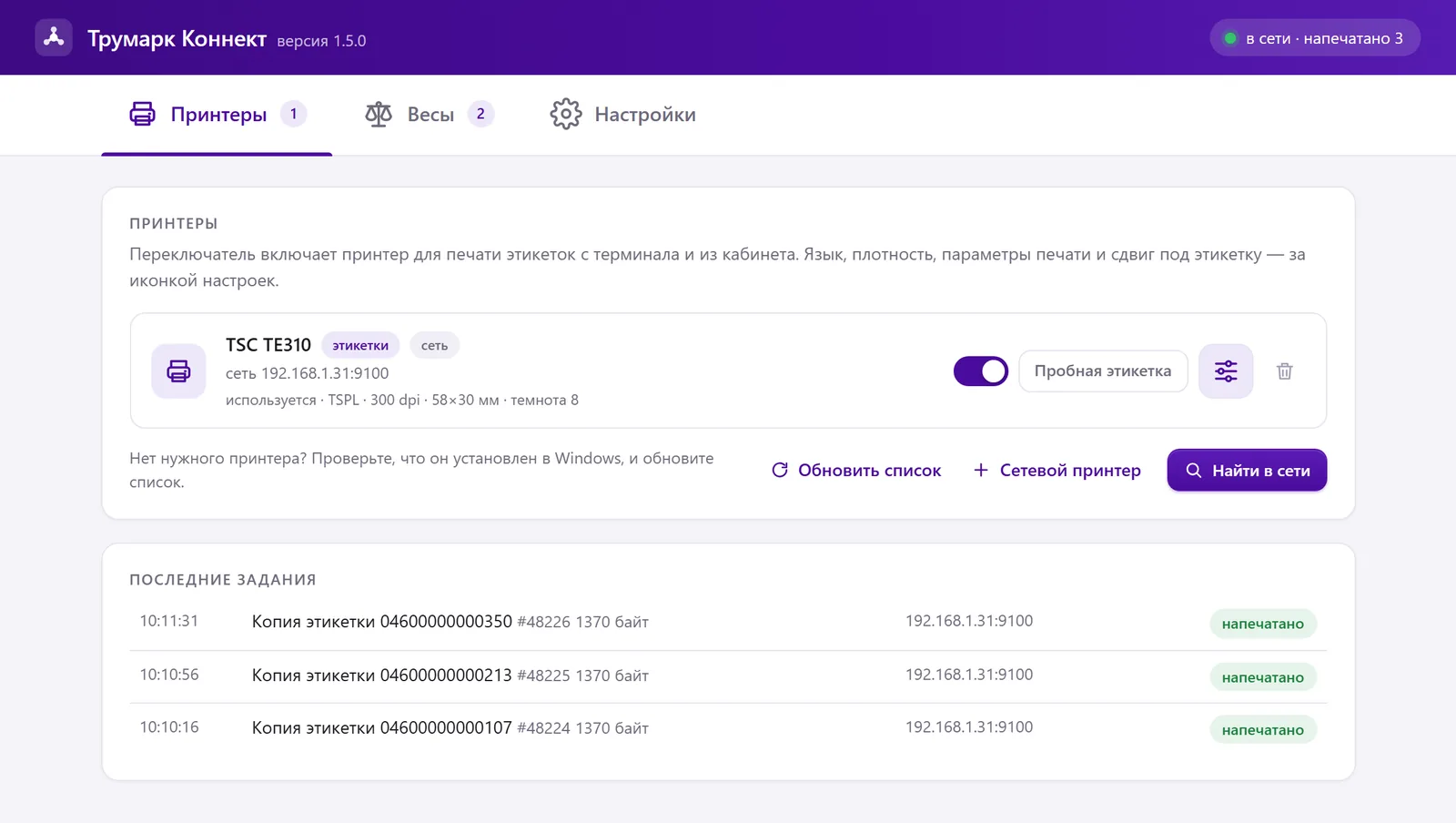
The account builds the label as an image, and Connect sends it to the printer in one command in the printer’s language. Fonts and Windows driver settings don’t affect the image.
A label with the code, weight and dates is printed once the weight on the scales is stable. The station doesn’t work without Connect.
Marking stationScan a code in the account or on a handheld terminal, and the printer at the computer prints the same label from the account template, right away in the number of copies you need
How a copy worksIn manual aggregation, Connect prints the aggregate label on the first item or when the aggregate is complete. You can also print them all at once from the aggregation list.
AggregationThe scales and printer stay at the computer with Connect, and you can weigh and print from handheld terminals on the same network. Up to 8 handheld terminals per computer.
Handheld terminal appThe weight from scales on the network or on a COM port goes directly to the account open on the same computer, without a server
Variable-weight goodsIf CryptoPro EDS Browser plug-in is installed, on first launch Connect adds the Truemark website and account to its trusted sites. The “trust this site?” window no longer appears when you sign.
Connect doesn’t print the label run from the “Label printing” section: the account gives it to you as a PDF file, and you can print it on any printer. How to do it is in the article how to print labels on a printer.
How to start
Step by step with pictures in the article how to install Truemark Connect.
TruemarkConnect.exe runs without installation, from the folder it is in. Move it from “Downloads” to a permanent folder, for example C:\TruemarkConnect, and run it.
In the account on the same computer: “Settings” → “Devices” → “Connect”. Confirm in the Connect window, which shows the company, INN and who made the request. No code is needed.
Connect recognizes a label printer by its name and enables it itself. A test label shows right away whether the language and resolution are right.
The “Find on network” («Найти в сети») button on the “Scales” tab, or enter the IP address manually. For scales on a COM port, Connect picks the port speed itself.
The “start when signing in to Windows” switch: after a restart, the station and copies print without starting Connect by hand
Label printers
What matters is the printer language; it’s listed in the printer’s specifications. For marking, we recommend a thermal transfer printer with a ribbon. “Tested” means we printed through Connect ourselves; “by language” and “by documentation” mean it works by the same rules, but we haven’t tested the model itself.
TSPLThe marking station and label copies by scan print on it through Connect
ZPL or TSPLThe language is selected in the printer itself; over USB, Connect picks it up automatically
ZPLLarge labels print compressed: “Compress” in the printer settings
EZPLGodex’s native language. We haven’t printed on Godex ourselves; check with a test label
TSPLThe same language as the TE310. Check the model with a test label
ZPLCheck the model with a test label
Own languagesConnect doesn’t print in their languages
The printer is installed in Windows; the job goes through the print queue in the printer’s language
A printer with Ethernet or Wi-Fi doesn’t need to be installed in Windows: Connect prints to its IP address, port 9100
“Find on network” finds printers and scales on the local network; no labels are printed during the search
203, 300 or 600 dpi, per the printer’s specifications
An office printer won’t work for the station and copies: Connect sends the job in the label printer’s language. On an office printer, labels are printed as a PDF file: layout on an A4 sheet. What to check in the specifications and how to set up printing is on the page label printer for Chestny ZNAK.
Tested hands-on
We’ve tested printing through Connect on this printer since the first release: the marking station label and the label copy by scan reach the printer and print in full.
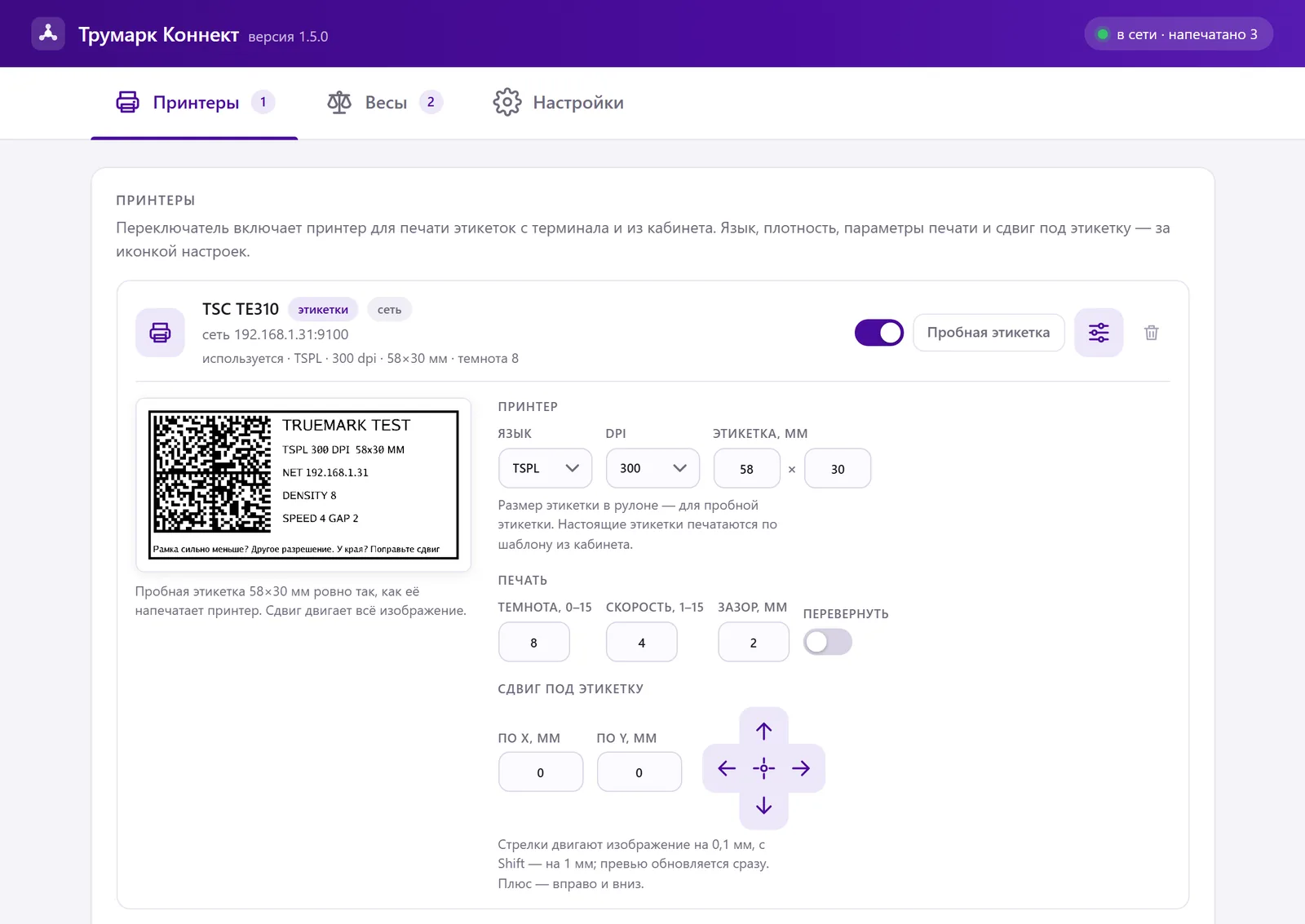
Darkness from 0 to 15, speed from 1 to 15, label gap and offset in 0.1 mm steps, 1 mm with Shift. The preview changes right away, and the settings save automatically.
Scales
Connect reads the weight from scales over the network or on a COM port and passes it to the account on the same computer. Massa-K and CAS label scales work with Connect as scales: the weight goes to the account, and the label printer prints the label with the code. “Tested” means we connected the model ourselves; “by protocol” means it works by the same rules, but we haven’t tested the model itself.
| Scales | How they connect | Status |
|---|---|---|
| CAS CL5000Label scales | Over the network or on a COM port | Tested over the network |
| CAS CL5000J and CL3000Label scales | Over the network or on a COM port. The CL5000 and CL5000J use different protocols, so they are two models in Connect | By the manufacturer’s protocol |
| Massa-K on an RP terminalWith label printing, for example MK-15.2-RP10 | Over the network: “Find on network”, model “Massa-K (1C protocol)”. The weight goes to the account and to the station on handheld terminals | Tested over the network |
| MERTECH M-ER 725Retail scales | Over the network, the port is filled in automatically | Tested over the network |
| Massa-K with protocol 100Over the network | Model “Massa-K (protocol 100)”, also works with the station on handheld terminals | By protocol |
| Other network scalesWith the POS2-M or CAS-M protocol | Port from the scales’ network settings | By protocol |
On the “Scales” tab, each set of scales shows its current weight and status
Each scale family is a separate module in Connect. Send us the scale model and the exchange protocol description from the manufacturer or supplier, and we’ll discuss the integration.
How to connect Massa-K label scales step by step is on the page Massa-K RP10 scales and Truemark. Connect only reads the weight: it doesn’t touch tare, zero or printing on the scales themselves, and the label printer prints the label. Massa-K with protocol 100 and MERTECH M-ER connect by USB or RS-232 cable without Connect, right in the browser: how to connect scales. Which scales to choose for variable-weight goods is in the article scales for marking.
Unattended
Checks for a new version after launch and then once an hour, verifies the file signature, installs the update and restarts
An icon in the system tray next to the clock; the settings page opens from its menu. You don’t need to keep it open.
A Windows dialog with the company and INN, with “Don’t connect” selected by default. Enter and Esc in it decline, so a scanner can’t confirm the connection by accident.
Connect reports “printed” when the Windows queue has passed the job to the printer. If the printer is off, paused or out of labels, you get “not printed” with the reason within a few seconds, and no extra label comes out later.
In “Devices”, each computer shows its printer and the “Online” status. Connect and the account see a printer that is turned off or unplugged from USB right away.
The “Send logs” button: the log goes to Truemark support together with the program version and the computer ID
Connect is installed on every computer with a printer. In the account and on handheld terminals, the printers of all computers are in one list.
The company owner gets an email and a message in the account. A computer is disconnected with the trash icon in “Devices”.
To make a DataMatrix label without the account, use the DataMatrix generator, and for a box or pallet label, the SSCC generator. When you need a copy and when you need re-marking is in the article how to reprint a marking code.
Questions
Didn’t find an answer? Write to us, and an expert will reply in 15 minutes on average. Step by step in the knowledge base.
A Windows program that links the Truemark account with the label printer and scales on the computer. The marking station, label copies by scan and manual aggregation print through it, and the weight from the scales goes to the account and to the station on handheld terminals.
You don’t need a separate program for an order’s label run: the account gives you the labels as a PDF file, and any printer can print it. Truemark Connect is needed when the label must come out right away without a PDF: at the marking station, for a label copy by scan and when packing boxes.
For an order’s label run, any printer that prints PDF. For the marking station and label copies through Connect, a label printer with the TSPL, ZPL or EZPL language and a resolution of 203, 300 or 600 dpi: TSC, ATOL, Xprinter, Zebra, Honeywell, Datamax, Intermec, Argox, Godex, iDPRT and MERTECH. For marking, we recommend a thermal transfer printer with a ribbon. We tested printing through Connect on the TSC TE310, the MERTECH TLP400 and an iDPRT printer; check any other model with a test label. Sato, Bixolon and Citizen printers with their own languages are not supported.
Yes. We tested printing through Connect on the TSC TE310: the marking station label and the label copy by scan. TSPL language, 300 dpi resolution, connection over USB or the network.
A USB printer must be installed in Windows: Connect sends it the job through the print queue in the printer’s language, without a print dialog. A network printer doesn’t have to be installed in Windows; Connect prints to it by IP address, port 9100.
Check the printer language in the Connect settings: a ZPL printer won’t understand a TSPL job, and vice versa. TSC, ATOL and Xprinter use TSPL; Zebra, Honeywell and Datamax use ZPL; Godex uses EZPL. After a test label on a MERTECH or a network printer of an unknown model, Connect will itself offer to try another language.
The scales need a connection to the computer: network or COM port. In Connect, on the “Scales” tab, click “Find on network” («Найти в сети») or add the scales by IP address; the model is chosen from the list. Massa-K and MERTECH M-ER connect by USB or RS-232 cable without Connect, right in the browser.
CAS CL5000, CL5000J and CL3000 label scales over the network or on a COM port, Massa-K on the RP terminal with the “1C protocol”, Massa-K with protocol 100 over the network, MERTECH M-ER 725 and other network scales with the POS2-M and CAS-M protocols. We tested Massa-K on the RP terminal, CAS CL5000 and MERTECH M-ER 725 ourselves over the network; the others fit by protocol.
Yes, if they have a network or COM port. We connected Massa-K on the RP terminal and CAS CL5000 ourselves; CAS CL5000J and CL3000 fit by protocol. Connect takes the weight from them, and the label printer at the computer prints the label with the marking code: Truemark doesn’t print on the scales themselves and doesn’t touch tare or zero.
Check the exchange protocols in the scales’ specifications: if they have POS2-M or CAS-M and a network connection, you can add the scales as the “Other network scales” model. If not, send us the scale model and the exchange protocol description from the manufacturer or supplier: each scale family is a separate module in Connect, and we’ll discuss the integration.
No. Connect is one file, TruemarkConnect.exe, and it runs from the folder it is in. Administrator rights aren’t needed. Windows may show “Windows protected your PC”: click “More info” and “Run anyway”.
Connect is currently released for Windows 10 and later. If you need it for macOS or Linux, write to us or leave a request at the bottom of the page, and we’ll discuss it. Scales connected by cable in the browser also work on other systems.
You don’t: it updates itself. Connect checks for a new version after launch and once an hour, verifies the file signature and restarts. To update right away, use the “Check for updates” button in the icon menu.
Yes. In the handheld terminal app: “Settings” → “Label printer” → “PC”; the list shows the printers of all computers with Connect. A handheld terminal can also print to a network printer directly by IP address.
Download Connect, connect the computer with one button and print a test label. 7 days of full access for free, no card required.
Or leave a request
We’ll answer about volumes, pricing and getting started. Leave your phone or email and your question in the request form.